Backups: Create & Restore
Your website files, databases, and email are valuable. A backup is a copy of them you can restore if something goes wrong — a bad update, a hack, an accidental deletion, or a server problem. Here's how to create and restore backups in your control panel.
The golden rule: always keep a copy of a backup off the server — download it to your computer or another service. A backup sitting on the same disk as your site isn't a safety net if that disk fails.
Create a backup on demand
Step 1 — Open the Backups section
Log in to your control panel and click Backups in the top menu.
Step 2 — Create Backup
Click Create Backup. It runs in the background and you'll get a notification when it's ready to download. You'll see the backup listed in the table when it's done.
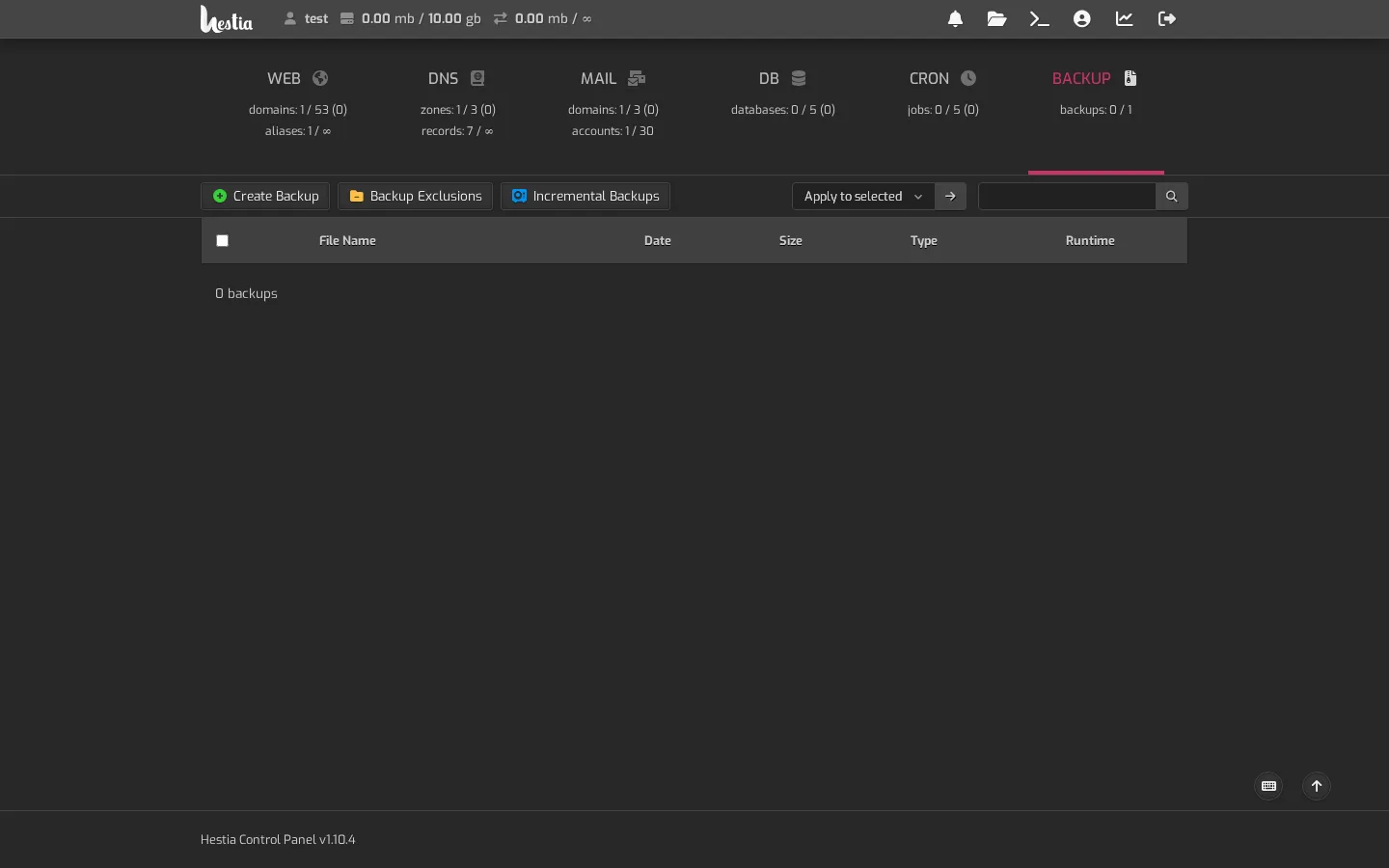
Backups include your websites, databases, and email accounts for the domain.
Turning on regular backups
On the Backups page you'll also see:
- Incremental Backups — instead of a full copy every time, this only saves what changed, so backups are smaller and faster.
- Backup Exclusions — lets you leave out folders you don't want backed up (for example, large, regenerable cache folders).
Turning these on means you always have a recent backup without doing it by hand. We also recommend downloading a copy off the server on a schedule.
Restoring a backup
If the backup is on the server
- Go to Backups in your control panel.
- Find the backup in the list and choose to restore it. It puts your files, database, and email back to that point in time.
If you downloaded the backup to your computer
- Upload the backup file back to your hosting — see Upload files.
- From the Backups page, select the uploaded file and choose Restore.
How often should I back up?
- At least weekly for a business site.
- Before any big change — a WordPress update, a new plugin, a redesign — so you can roll back if it breaks.
- Daily if you update content every day or take orders online.
WordPress users: see Install WordPress — many sites still need their own backup plan for the database; a host-level backup covers you well.
What's the difference between a backup and a snapshot?
A backup is a downloadable copy of your data you control. A snapshot is a point-in-time copy taken by the server. Both are useful; a backup you've downloaded somewhere else is the one that really protects you.