Log in to Webmail
Your Email Hosting mailbox comes with webmail — you can read and send email from any browser, with nothing to install.
Where to go
Open the webmail address in your browser. It looks like a normal website address, for example:
https://mail-catseye.bluenebulahosting.com/
You can also reach it from a link in your welcome email.
Log in
- Enter your email address as the username — that's the full address, like
you@yourbusiness.com. - Enter your password.
- Click Login.
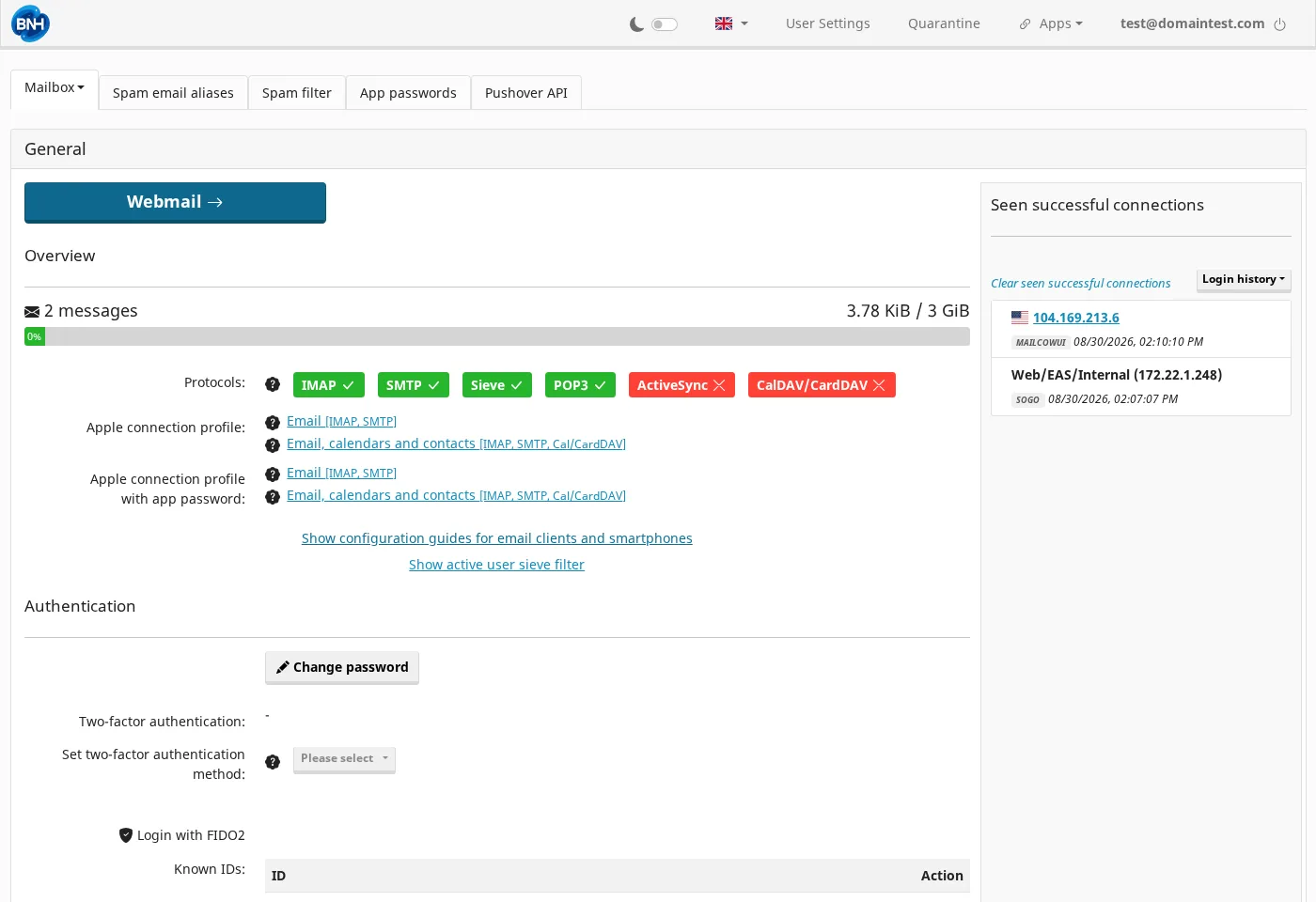
If you don't have your password or it was reset, see Change your password.
What you'll see
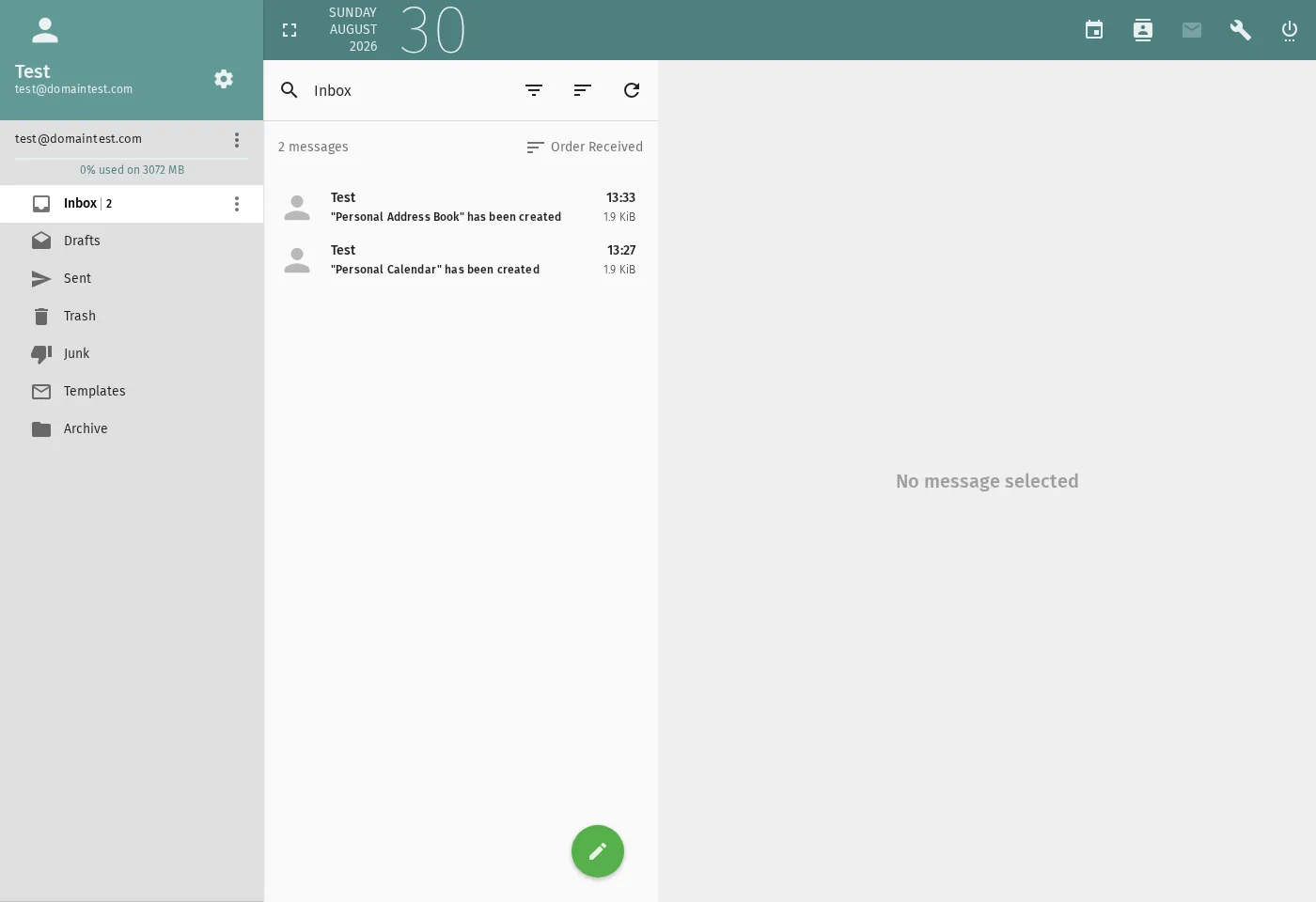
After you log in, you'll see your inbox with the mail folders on the left (Inbox, Drafts, Sent, Trash, Junk, and Archive). To read a message, click it. To write a new one, click Write.
Where your connection settings are
To set up email on your phone or computer, you need your connection settings. In webmail, find User Settings and look for the link that shows configuration guides for email clients and smartphones — that page lists the exact IMAP/SMTP settings for your account. See Set up your devices.
Logging in gets easier: you can turn on two-factor authentication in User Settings so a code is required to log in, and enable app passwords for devices that don't support it well. See Change your password.