Change or Reset a Mailbox Password
Need to update the password on an email address — or you've forgotten it and can't get in? You can do either from your control panel, in about a minute. No emails are lost.
Changing a password you know
Step 1 — Open the Mail section
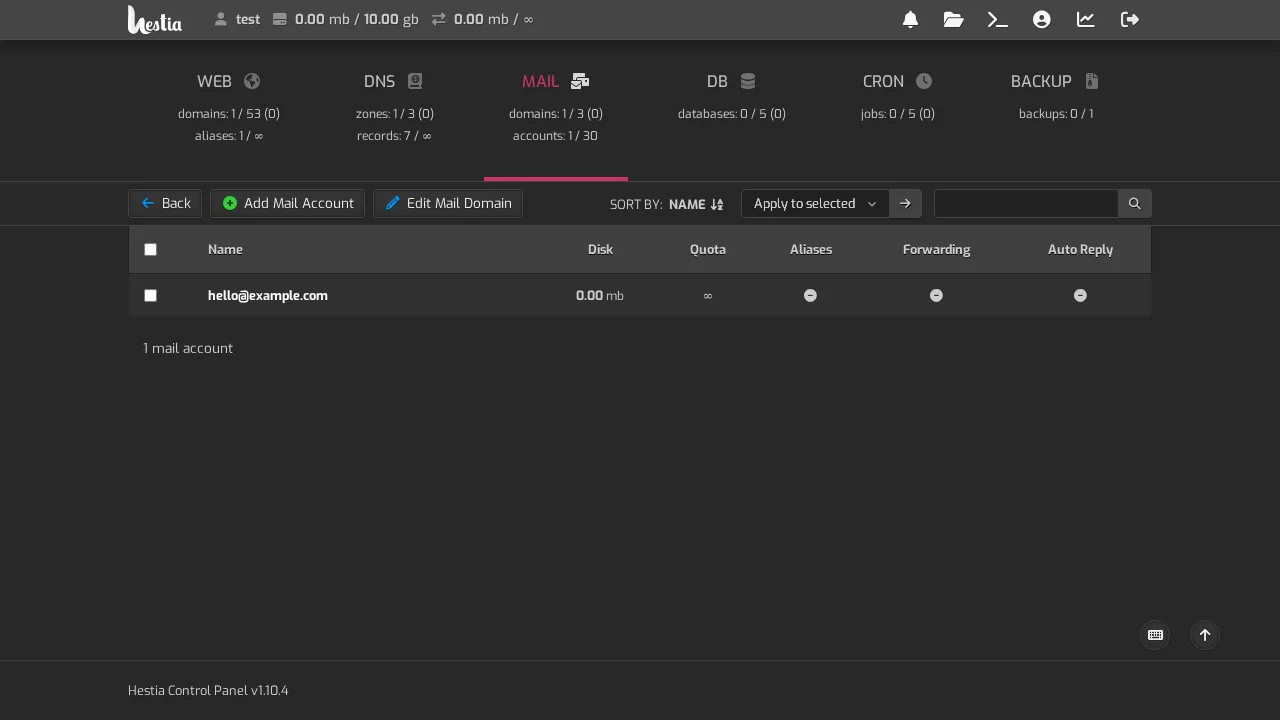
Log in to your control panel and click Mail in the top menu, then choose your domain.
Step 2 — Open the mailbox
Click the mailbox you want to change (or the Edit link next to it).
Step 3 — Set a new password
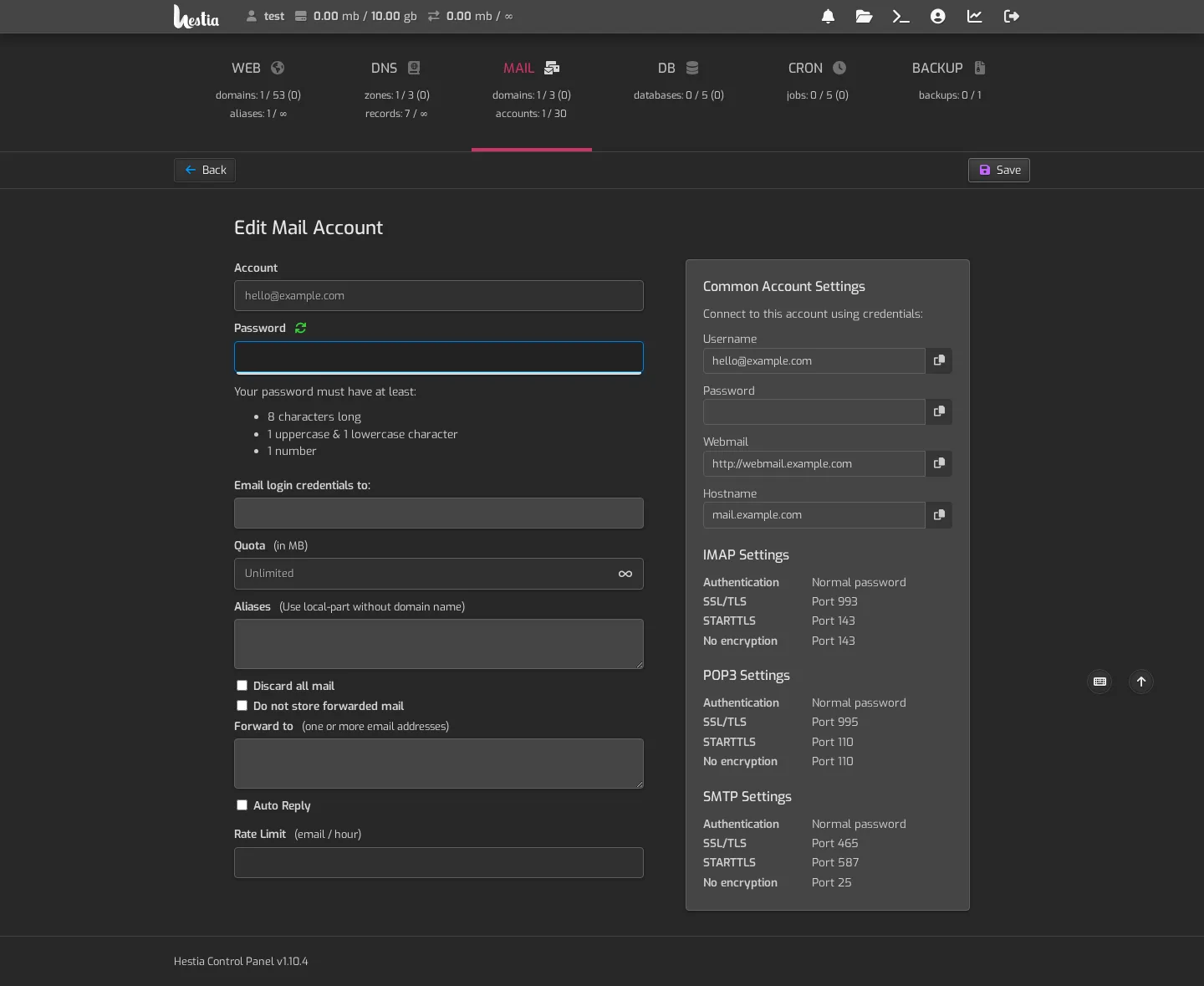
In the Password field, type a new one and click Save.
Password rules: at least 8 characters, with both upper and lowercase letters, and at least one number.
Resetting a forgotten password
Forgot your password and can't get into the mailbox? No problem — you don't need the old one.
- Log in to your control panel (the account owner can always reset mailbox passwords — no data is touched).
- Follow the same steps as above: Mail → your domain → the mailbox → Edit.
- Set a new password and Save.
That's it. Your emails stay exactly where they are; you're just changing the key to the door.
If you don't have control panel access
If you're not the account owner, only the account owner (or support) can reset your mailbox password. Contact your account owner, or contact support.
Update your devices after changing it
After you set a new password, update it everywhere you read that email:
- Your phone mail app (iOS or Android)
- Your computer mail app (Outlook, Apple Mail, etc.) — it may prompt you automatically
- Any CRM or booking system that sends mail through this address
Until you update a device, it'll keep trying the old password and may look "connection failed" or email may stop arriving in that app. Webmail always keeps working, so you're never locked out.
Tip: use a password manager so you never have to remember — or forget — a password again. See Strong passwords.